
Bear Notes Sync Without iCloud: What Actually Works
Disclosure: VB Notes is my app. I’ve tried to be fair, and I say where the others are the better choice.
Bear notes can’t sync without iCloud. Bear keeps your notes in Apple’s CloudKit, sync is a Bear Pro feature, and there’s no setting for Dropbox, Google Drive, OneDrive or a server of your own. What you can do is copy your notes out of Bear on a schedule, into any folder that syncs, or move to an app that keeps notes as files so the folder does the syncing.
Why Bear only syncs through iCloud
Bear’s own FAQ is plain about it: “Bear relies on Apple’s CloudKit technology to sync your notes”, and the team chose it “instead of a file based solution like iCloud, DropBox, or Google Drive because it performs much faster” (Bear FAQ). CloudKit is a database that Apple hosts, not a folder of files, so there’s nothing for Dropbox or Google Drive to pick up.
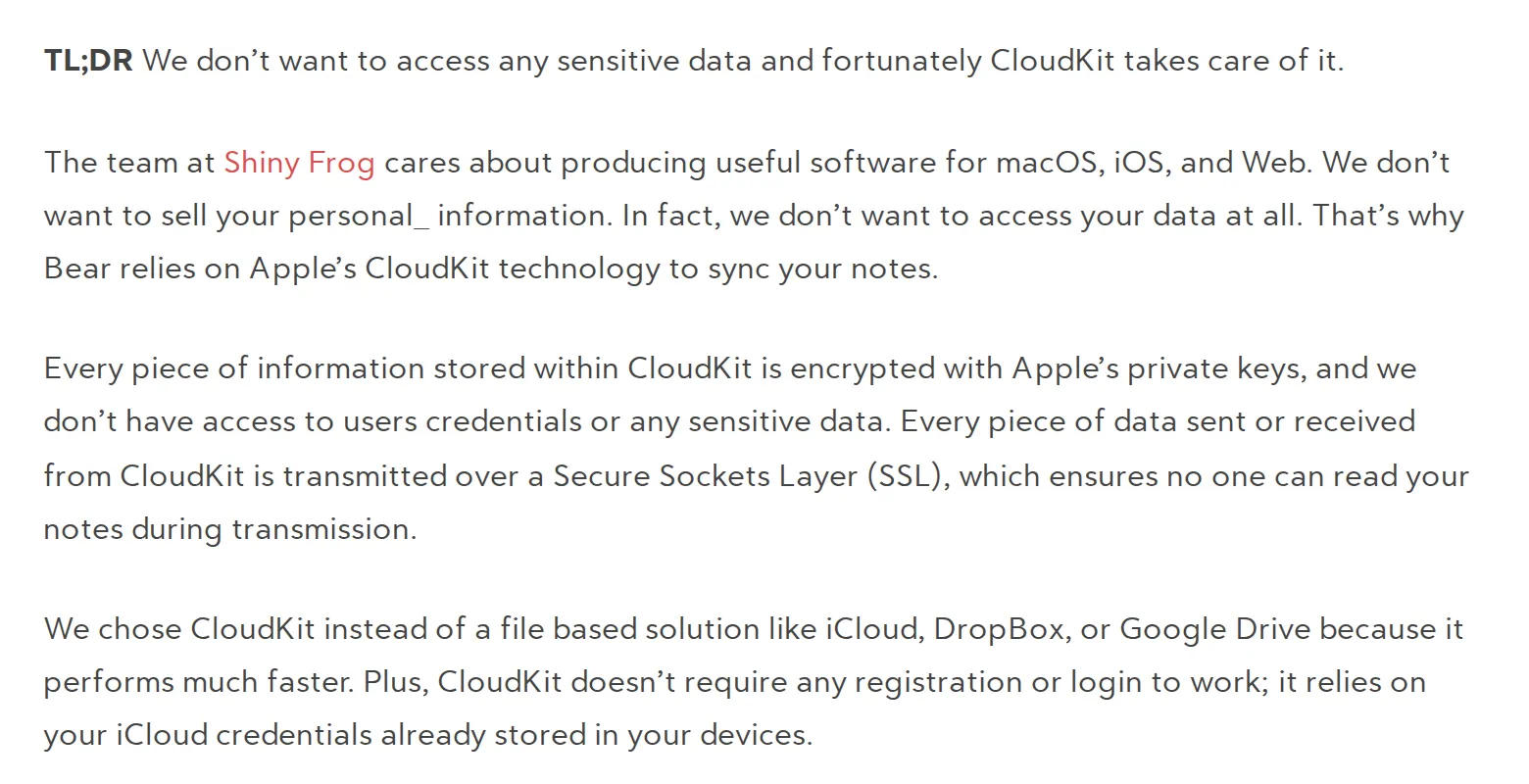 Bear’s Syncing & Privacy FAQ, 9 November 2026. Source: bear.app
There’s no Bear account, because CloudKit uses the iCloud sign-in already on your devices. That also means every device has to be an Apple one, signed in to the same iCloud account.
Sync is also the main thing Bear Pro sells. Its feature list opens with “iCloud sync for all your notes and TagCons across all devices”, at $2.99 a month or $29.99 a year (Bear Pro). The free app works on each device, but they don’t sync.
If Bear isn’t syncing over iCloud
Before giving up on iCloud, check the requirements on Bear’s troubleshooting page. Check these first:
- Bear Pro is active, under the same App Store account on every device.
- The same iCloud account is signed in on every device.
- iCloud has room for your notes and attachments.
- iCloud Drive is on, if a device runs iOS or iPadOS 16 or earlier, or macOS 14 or earlier. On the Mac, and on iOS 16 or earlier, Bear’s own checkbox in the iCloud Drive options must be on too.
- Mobile data is allowed for iCloud Drive under Settings > Cellular, if the iPhone isn’t syncing away from Wi-Fi.
Bear shows its state in the sidebar: a cloud with two arrows means it’s still syncing, a crossed-out cloud means no connection or sync is off, and a red dot means a problem. Preferences > Sync shows when the last sync happened. Two limits catch people out: attachments must be under 250 MB, and a note over 500,000 characters won’t sync.
Space is the cheapest fix. iCloud includes 5 GB free, and in the US 50 GB costs $0.99 a month (Apple support).
When iCloud is not an option
The usual reasons are a work Mac that blocks personal iCloud accounts, a company that only allows Google Drive or OneDrive, or a Windows PC or Android phone in the mix. Bear has no setting for any of them, so the choice is between copying notes out of Bear and leaving Bear. On a work Mac without iCloud, Bear still runs, as a single device that never syncs; the scheduled export below is how those notes reach anywhere else.
Export your notes to a folder that does sync
The free version of Bear exports to Markdown, plain text, TextBundle, Bear Note and RTF (Bear’s export guide). To export everything on a Mac, click Notes in the sidebar, press ⌘A, then choose File > Export notes… (⇧⌘S). On the iPhone, select Notes in the sidebar, tap Notes with the arrow at the top, then Export….
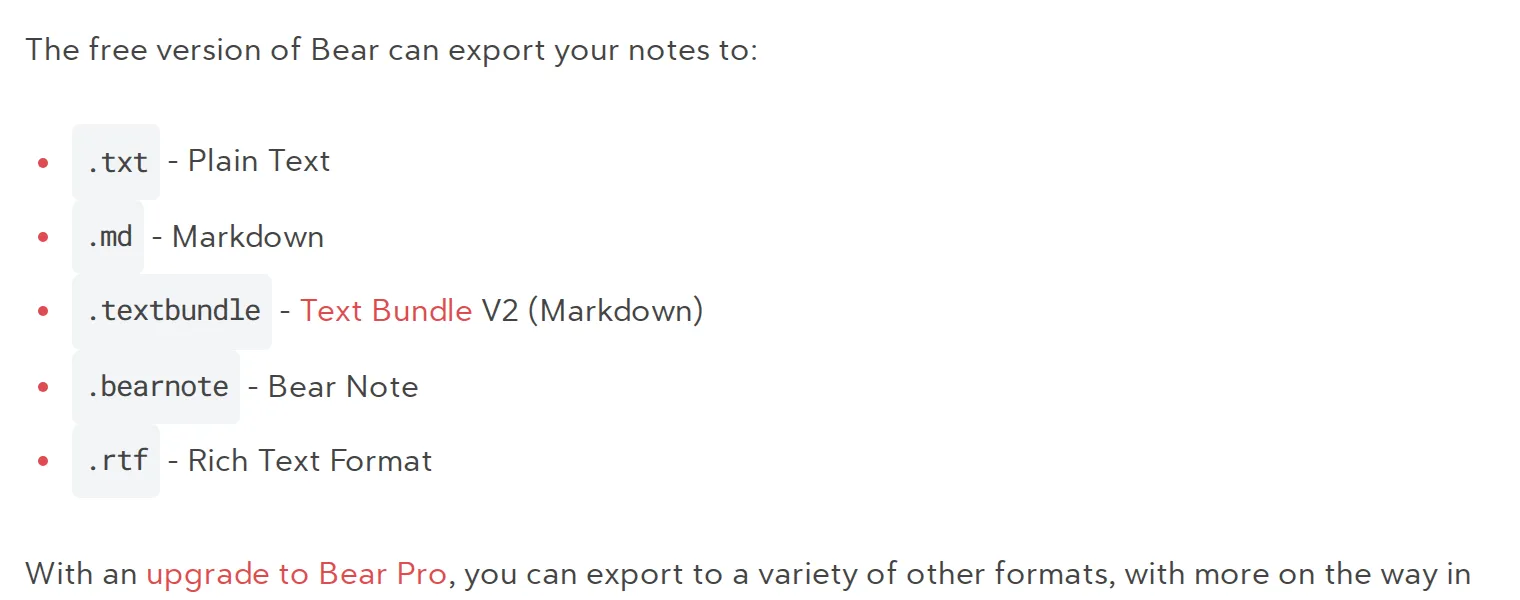 Bear’s export guide, 9 November 2026. Source: bear.app
Turn on Keep tags during export under Bear > Preferences > General first, so your #tags stay in the text. On the Mac, the export panel pictured in the same guide has an Export attachments box for your pictures and files. Save the export inside your Dropbox, Google Drive or OneDrive folder, and the files reach every device that drive reaches.
Edit an exported file on your work PC and Bear never sees the change. Getting notes back in means importing them: on a Mac, File > Import From > Markdown Folder brings in every .md file in a folder and its subfolders, attachments included (Bear’s import guide).
Back up, but don’t restore as a way to sync
A Bear backup is one .bear2bk file with everything in it. On a Mac it’s File > Backup Notes…; on the iPhone, tap the ⋮ menu at the top of the sidebar and choose Backup all notes (Bear’s backup guide).
It looks like a way to move notes between two Macs, and it’s a risky one. Bear warns that when you restore a backup, “all notes currently in Bear, including trashed notes, will be permanently deleted.” Use backups to keep a safe copy in Dropbox or on a drive, not to pass notes back and forth.
Automate the copy on a Mac
Bear’s Shortcuts actions include Export notes and Generate backups, and the backup action is Mac only (Bear’s Shortcuts guide). Locked notes are left out, since Shortcuts can’t read them. A shortcut that exports to your Dropbox folder can then run on its own: the Shortcuts app on the Mac can trigger it at a time of day (Apple’s Shortcuts guide).
If you’re comfortable in Terminal, bearcli goes further. It’s an unofficial, MIT-licensed tool, “not affiliated with Shiny Frog”, that exports each note as a folder with its attachments, rewrites only the notes that changed with --sync, and with --push mirrors the export to a Git repository (a private one, in its example). It runs on macOS only, needs Python 3.13 or later, and treats Bear as the source of truth, so it’s one-way: a backup you can read anywhere, not a second place to write.
Bear on Windows and Android: Bear Web
Bear Web runs in any browser, which makes it the only way to reach your actual Bear notes from a Windows PC or an Android phone. Bear says it isn’t meant as a standalone app, only as a companion to the Apple ones, and it doesn’t get you away from iCloud. Bear’s FAQ says it “syncs your notes via Apple’s iCloud, just like the native apps”, needs Pro to sync with them, and “won’t work if Apple’s Advanced Data Protection (ADP) is turned on” (Bear for web, Android and Windows). It’s still a public beta, and the same page says Bear has no plans for Android or Windows apps.
For Android, I’ve compared the options in Bear notes for Android. For a PC, see Bear alternatives for Windows.
What about Lettera?
Bear’s makers have built the file-based app people kept asking for, but it isn’t Bear. Lettera, announced on 18 June 2026, is a Markdown editor for macOS that grew out of Panda, the editor written for Bear 2.0. It opens plain files and folders, starting with an iCloud Lettera folder, and you can open any other folder from File > Open.
That means a folder in Dropbox works with it. But it’s a beta through TestFlight, the announcement covers only the Mac, and it’s a separate app from Bear. It’s a writing app that shares Bear’s editor, not Bear with a different sync.
Moving to an app where the folder is the sync
If iCloud is the problem and not Bear’s design, the lasting fix is notes stored as files. Then whatever syncs folders on your devices (Dropbox, Google Drive, OneDrive or Syncthing) syncs your notes, and no app decides for you.
Obsidian is the best-known one. Its Importer plugin reads Bear’s .bear2bk backup and “converts your Bear data to durable Markdown files” (Obsidian help).
VB Notes, my app, takes the same route with a Bear-style editor. Export from Bear to Markdown with your tags kept, into your Dropbox, Google Drive or OneDrive folder, then choose that folder as the notes folder in the desktop app on Windows, Mac or Linux and open it as it is, with nothing to import (desktop guide). An Android phone reaches the same folder through a sync app such as FolderSync, or straight from the computer with Syncthing (Android sync guide). Nested tags such as #work/clients stay in the text, and VB Notes builds its tag list from them.
The iPhone is the catch: Dropbox and Google Drive folders can’t be picked there, so an iPhone still needs iCloud Drive or a folder on the phone itself. Next to Bear it also lacks encryption of its own, an iPad version, a web app and a backlinks panel.
FAQ
Can Bear sync without iCloud?
No. Bear syncs only through Apple’s CloudKit, which uses your iCloud account, and sync needs Bear Pro. You can export notes to any folder, but that’s a copy, not sync.
Does Bear sync with Dropbox or Google Drive?
Not directly. Bear’s FAQ says it chose CloudKit over file-based services like Dropbox and Google Drive. Exporting to Markdown into a Dropbox or Drive folder gives you a readable copy, but edits there don’t flow back into Bear.
Why are my Bear notes not syncing?
Common causes are a lapsed Bear Pro, devices that use different iCloud or App Store accounts, or a full iCloud; attachments over 250 MB and notes over 500,000 characters never sync.
Can I use Bear notes on Windows or Android?
Only through Bear Web in a browser, which still syncs through iCloud and doesn’t work with Advanced Data Protection on; Bear has no plans for Android or Windows apps.
Does Bear work without Bear Pro?
Yes, on one device. The free version writes, organises and exports notes, but sync between devices is a Pro feature.
If your only problem is a full iCloud or a stuck sync, fix that and stay with Bear: nothing else writes quite like it. If iCloud is banned on your work machine or your phone runs Android, export your notes with tags kept, put the folder somewhere every device can reach, and try a file-based app on a copy before you move everything.