
Syncing on Android
Keep your notes in step between an Android phone and your computer, through Google Drive, Dropbox or OneDrive, or straight over Wi-Fi with Syncthing.
On Android, VB Notes keeps your notes in a folder on the phone. Google Drive, Dropbox and OneDrive don’t let other apps open their folders directly, so a small sync app keeps that phone folder in step with your drive or your computer. You set it up once; after that it runs on its own.
Here it is in 35 seconds, with Google Drive, Dropbox or OneDrive:
The first time VB Notes opens it offers both ways below. You can leave to install the sync app and come back: VB Notes opens on the same page until you have picked a folder. Already using VB Notes? Open Settings › Notes folder › Location and pick the synced folder.
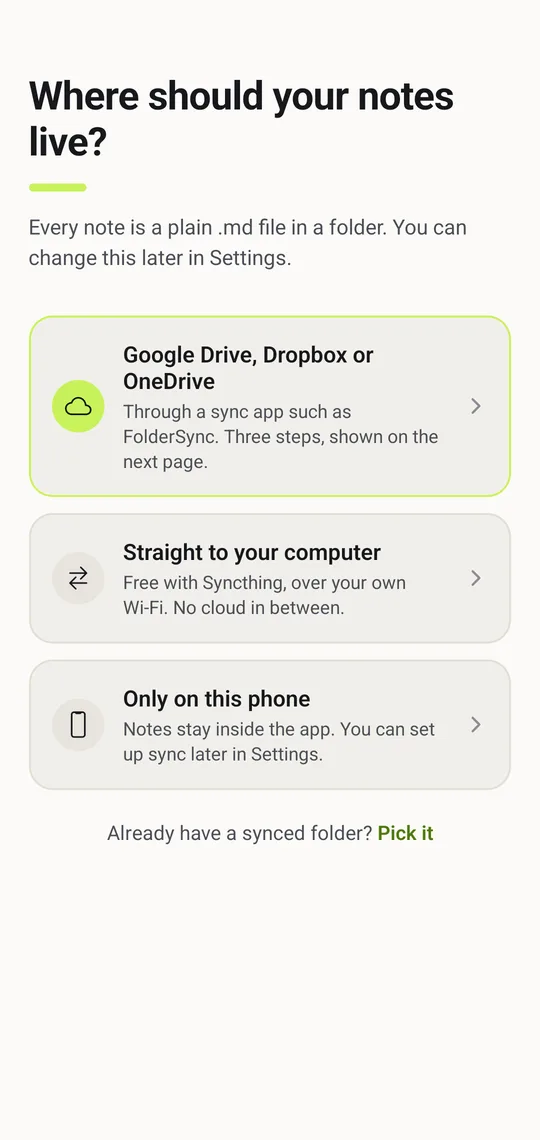
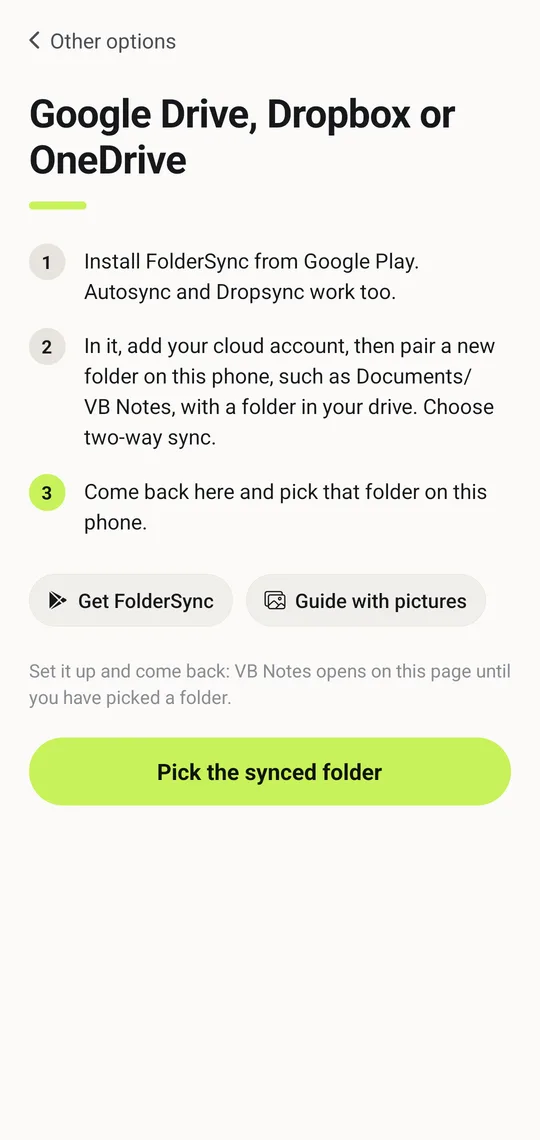
Google Drive, Dropbox or OneDrive
- Install FolderSync from Google Play. Autosync (for Google Drive or OneDrive) and Dropsync (for Dropbox) do the same job.
- In the sync app, add your cloud account. Then make a folder pair: a new folder on the phone, such as
Documents/VB Notes, and a folder in your drive. Choose two-way sync, and sync whenever a file changes if the app offers it. - Back in VB Notes, tap Pick the synced folder and choose the folder on the phone.
On your computer, open the same folder in the desktop app. Google Drive, Dropbox and OneDrive all keep a copy of it on your computer.
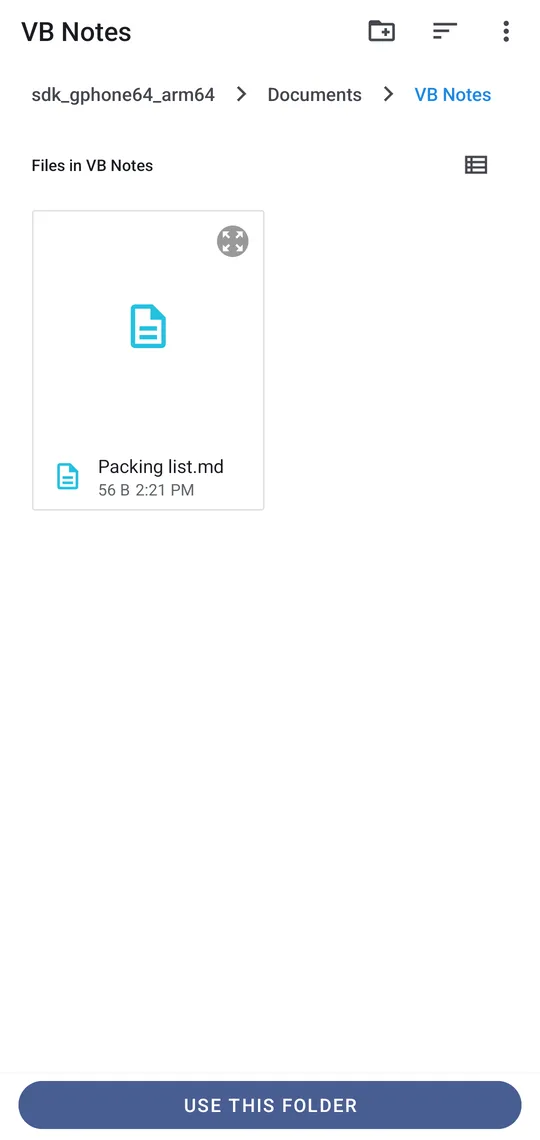
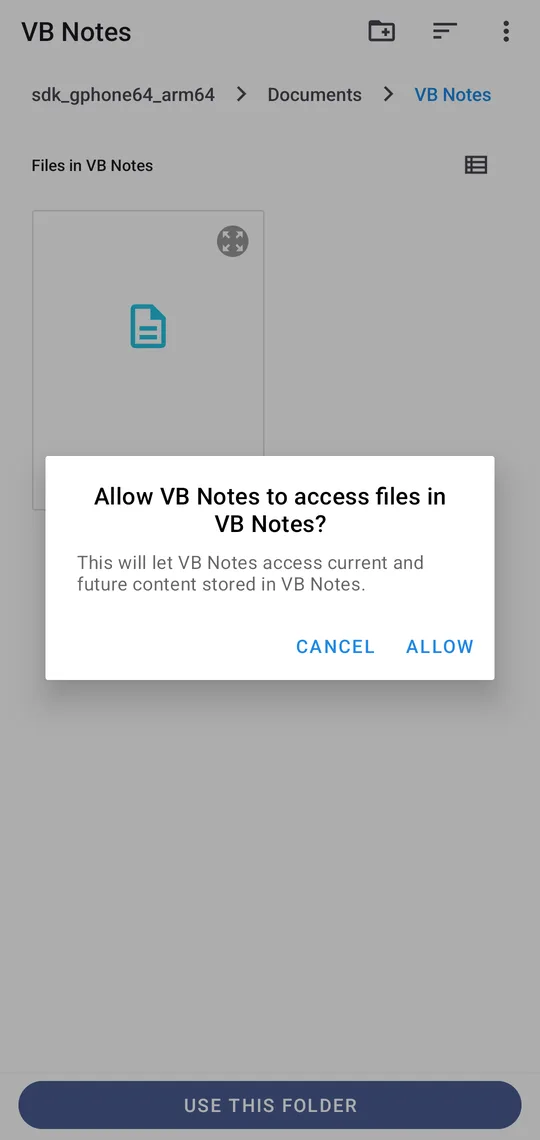
Picking the folder
Pick the synced folder opens Android’s folder picker. Go to the folder the sync app keeps in step, tap Use this folder, then Allow. VB Notes keeps that permission, so you only do this once.
Straight to your computer
Syncthing copies the folder directly between your phone and your computer over Wi-Fi, with no cloud in between. It is free.
- Install Syncthing-Fork on the phone and Syncthing on your computer.
- Add each device to the other, then share a folder, such as
Documents/VB Noteson the phone, with your computer. - Back in VB Notes, tap Pick the synced folder and choose that folder. On your computer, open the same folder in the desktop app.
The two devices sync whenever they can see each other, so changes made while one is away arrive when it is back.
Good to know
- Sync only the folder VB Notes uses, and don’t let two sync apps manage the same folder.
- If the same note is edited on two devices before they sync, the sync app keeps both copies. Merge them by hand and delete the extra one.